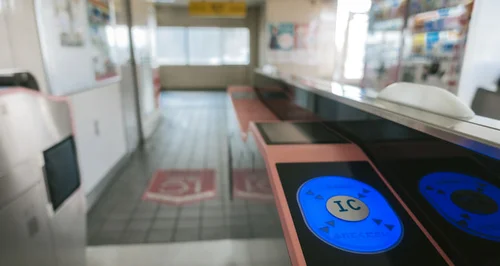
Traveling around Japan is incredibly convenient, especially when you have a Suica card, a popular rechargeable smart card that allows you to pay for train rides, buses, and even purchases at convenience stores. Even better, you can now use Suica directly on your smartphone through the Mobile Suica app. Here’s a step-by-step guide on how to install and use the Mobile Suica app on your smartphone, tailored for foreign visitors to Japan.
Step1: Check Compatibility
Mobile Suica, Japan’s convenient transit and payment app, requires specific OS versions for compatibility. For Android, your device must support Osaifu-Keitai (FeliCa) and run Android 6.0 or later. For iPhone, it works on devices with iOS 13 or later, starting from the iPhone 8 or newer models with Apple Pay. Ensure your phone meets these requirements for seamless Mobile Suica use!
Step2: Download the Mobile Suica App
1.For iPhone Users: Using Mobile Suica on iPhone is easy. Ensure your device is iPhone 8 or newer with iOS 13 or later. Open the Wallet app, tap the “+” icon, and select “Suica” to add a card. Follow the prompts to download and set up your Mobile Suica. Once complete, you can use Apple Pay for transit and payments across Japan!

Source: Apple store
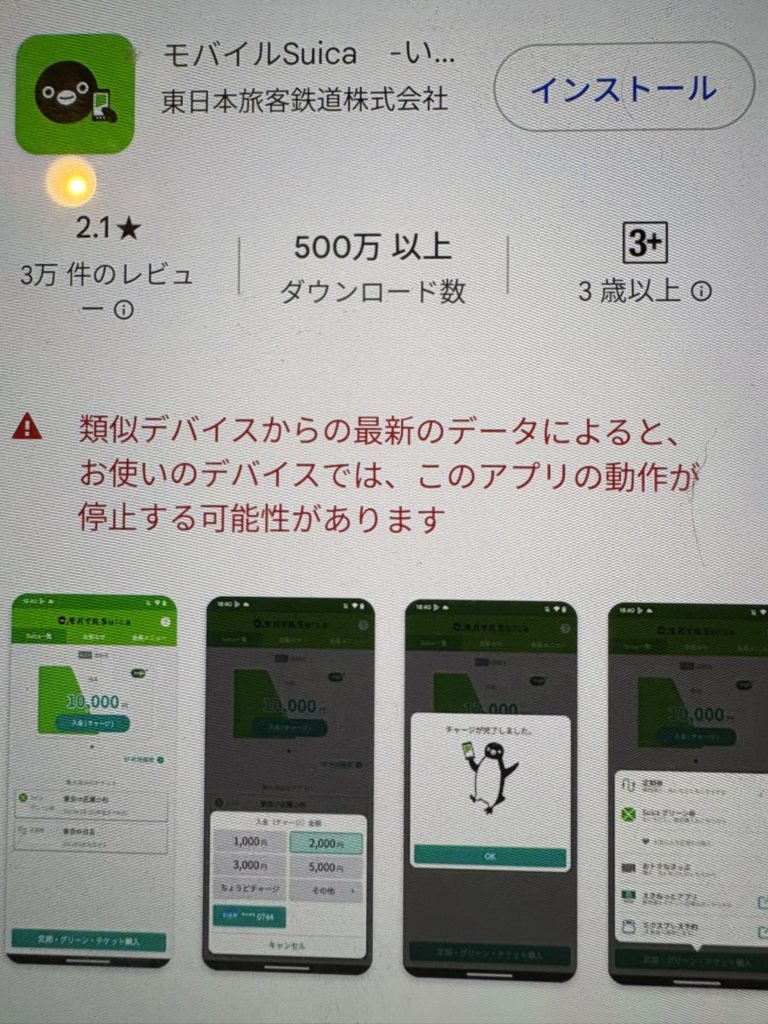
2.For Android Users: To use Mobile Suica on Android, ensure your device supports Osaifu-Keitai (FeliCa) and runs Android 6.0 or later. Download the Mobile Suica app from the Google Play Store, then follow the setup instructions to create or link your Suica card. Once registered, you can use Mobile Suica for transit and payments with ease!
Source: Apple store
Step3: Set up the Mobile Suica App
- Open the App: Once installed, open the Mobile Suica app on your smartphone.
- Register: Follow the on-screen instructions to create a Suica account. This involves entering your email address, password, and other necessary details.
- Add a Suica Card: You can choose to either transfer an existing physical Suica card to the app or create a new digital Suica card within the app.
Step4: Add Funds to your Suica
- Link a Payment Method:
- iPhone: You can add funds to your Suica via Apple Pay using a credit or debit card.
- Android: You can add funds using Google Pay or other linked payment methods compatible with the Mobile Suica app.
- Top Up: Once your payment method is linked, you can easily add funds to your Suica balance by selecting the amount you wish to top up and confirming the transaction.

Step5: Using Mobile Suica
Using Mobile Suica for trains and buses is simple and convenient. Just hold your smartphone over the IC card reader at station gates or bus entrances. Ensure your Mobile Suica balance is sufficient or linked to auto-recharge for seamless travel. It’s a fast, cashless way to navigate Japan’s transit systems!
Using Mobile Suica for payments at convenience stores and shops is easy. Simply hold your smartphone over the FeliCa reader at the checkout and wait for the confirmation sound. Ensure your Suica balance is sufficient or set up auto-recharge. Quick and cashless, it’s perfect for purchases at convenience stores, vending machines, and more!
Step6: Managing Your Suica
- Check Your Balance: Open the app to view your current balance and recent transactions.
- Recharge on the Go: You can top up your Suica balance anytime through the app.
- Lost Phone?: If you lose your smartphone, you can disable the Suica function via the JR East website to protect your balance.
Additional Tips
・Language Settings: While the Mobile Suica app primarily operates in Japanese, you can use your smartphone’s translation features or opt for the English-language support available within the app.
・Support: If you encounter issues, you can visit the JR East website or contact customer support for assistance.
By following these steps, you’ll be able to navigate Japan’s transportation system with ease using the Mobile Suica app on your smartphone, making your travel experience more convenient and enjoyable.